

I’ll admit, I’ve been using PHSH for a long time now, and Patterns have been one of those things I haven’t needed to use very often and am not 100% sure how exactly they work, so I’ve been a little afraid to attempt using them.
But then this year, I finally used one for the 10th Anniversary Re-Write of my first three books (at this point in time, only the first book is available to buy, the second is coming out in June!) to create the diamond effect for the sticker I used on the covers, and it wasn’t nearly as difficult as I thought it’d be, so I’ve decided to share it here!

And it’s only, like, 60/40 so I don’t end up forgetting how to do it myself later.
So, let’s get into it!

Step 1
Okay, so the first thing you need to do is decide what you need to add a pattern to and decide what kind of pattern you want to add.
Since I’ll be using the diamond text from the updated covers, the pattern I’ll be adding/using for this tutorial is going to be a diamond pattern, but you should be able to do this with any pattern you need.
Before we can add a pattern, we also need to pick an image to be the pattern.
The one I chose, was this:
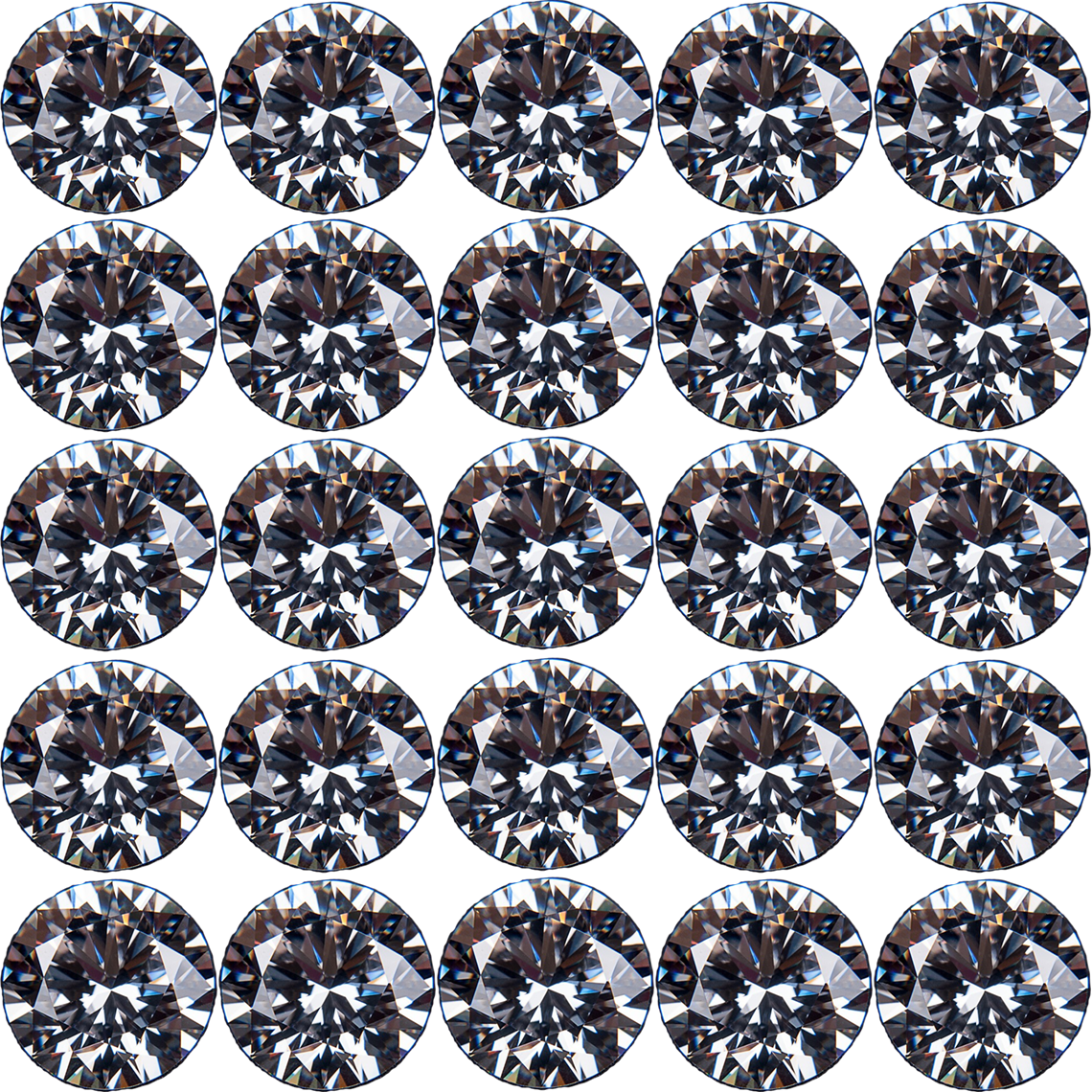
If you want to follow this tutorial exactly, feel free to save the image above to work with. Or, if you prefer, find your own image.
The only requirement that’s needed for this image, is it has to be clear, and repeating.
Or, if you find the perfect image and it doesn’t repeat, you can always make it repeat yourself.
And if you don’t know how to do that, it’s super simple! (If you do know how to do this, just go ahead and skip down to Step 2)
All you have to do is set your PHSH document size to whatever you need – I usually like to start mine as a square, just because I find them easiest to resize in projects – and then line up your image in the top-left corner. Also, you can resize it, depending on how big/small you’ll need it to be.

Once you’ve done that, hold down ALT on your keyboard and then you can either click and drag the image or the image’s Layer in the Layers Panel to duplicate it.

Then, just use your arrow keys or drag the image until it’s next to the first, and so on. Do this as many times as you need to get the image to repeat along just the top line of the document. If you need to, use a Guide to help with keeping the images in-line.

Once you’ve got the first line done, go to the Layers Panel, select all of the images from the first line, then hold ALT to quick-duplicate all of them. Then repeat this until you have enough to fill the whole square.

To help keep things looking less-insane in your Layers Panel, I always like to create Groups for each line. I find this helps, especially if you have to return to a project later, in keeping things less confusing.

Once you’re done that, you can go ahead and save the project as both a .PSD and JPEG/PNG file. (The .PSD is the Photoshop file, which will leave all the Layers and such editable/intact, if you need to come back and change some things later)
Now, we can get back to the regular part of the tutorial!
Step 2
Now that we’ve got our pattern, we’ll need to convert the file to a .PAT.
Why didn’t you just save it as a .PAT to begin with?
Great question!
I tried to do that straight from Photoshop, but I didn’t have it available as an option. If you have that as an option, then great! You absolutely could’ve done that, instead, and will know for next time.
Fortunately for us, the internet is full of fast/free/easy convert-file websites.
The one I usually go with, is this one.
Unfortunately, that site doesn’t have a .PAT convert option, so for the purposes of this tutorial, I actually ended up using this one.
I use that purple site for almost all of my other file converting needs, and recommend using it, if you need to convert files often.
Just go ahead and upload the file, click Convert, wait for it to finish, and then download/re-save it to your computer.

For ease, I usually name it Whatever File Name CONVERTED so I can easily distinguish it from the other one.

Step 3
Okay, now comes the actual reason you’re reading this tutorial: turning this image into a Pattern.
Are you ready?
All we have to do, is go up to Edit, then click the Define Pattern button.

Give the Pattern a name in the dialogue box that will help you distinguish it from the other patterns you already have, then click Okay to add it.

Yes, that’s really it.
Step 4
Okay, now all we have to do is apply the pattern to the text!
To do that, right-click on the text to bring up the Blend Mode options, scroll down to the Pattern Overlay option in the left-side menu.

Now, just select the pattern we added from the list of thumbnails, and hit Okay to apply it.

I also changed the Scale of my Pattern Overlay to 10% to line it up with the dots of the font I used, but that step is only required for the rest of this specific diamond effect, not for every pattern overlay.
And that’s it!
The text doesn’t look 100% the same yet, but that’s because this is only the first effect we needed to know to create this diamond text effect.
But don’t worry: I’ll be showing you guys how to complete the diamond texture effect over the next few tutorials!
Like this tutorial? Check out more here!